Install guide
Install Poly Fast on Chrome
Poly Fast is not in the Chrome Web Store, so Chrome installs it from a folder on your computer instead. It takes about a minute, and the same steps work in Edge, Brave, Opera and other Chromium browsers on desktop.
On Firefox? Get it from Firefox Add-ons in one click instead.
On Edge? Get it from Edge Add-ons in one click instead.
- 1
Unzip it into a folder you will keep
On Windows, right-click the file and choose Extract All; on a Mac, double-click it. Put the folder somewhere it can stay, like Documents
- 2
Open the extensions page
Paste
chrome://extensionsinto the address bar and press Enter. Or open Chrome’s ⋮ menu, then Extensions → Manage extensions.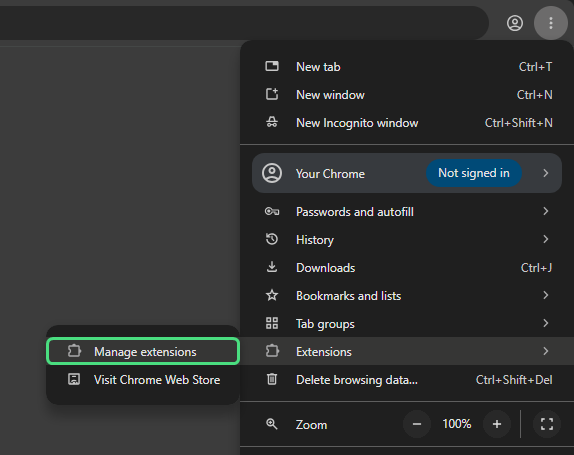
- 3
Turn on Developer mode
The switch is in the top right corner of the page.
chrome://extensions
If the switch is greyed out, your browser is managed by an organisation that does not allow it.
- 4
Click Load unpacked and pick the folder
A row of buttons appears under the title. Click Load unpacked and choose the
poly-fast-0.2.0folder from step 1: the folder itself, withmanifest.jsondirectly inside, not the .zip.chrome://extensions
- 5
Done. Open Polymarket
Poly Fast is now in the list. Open any market on polymarket.com and the panel is there. To keep its settings a click away, open the puzzle-piece menu in Chrome’s toolbar and pin Poly Fast.
chrome://extensions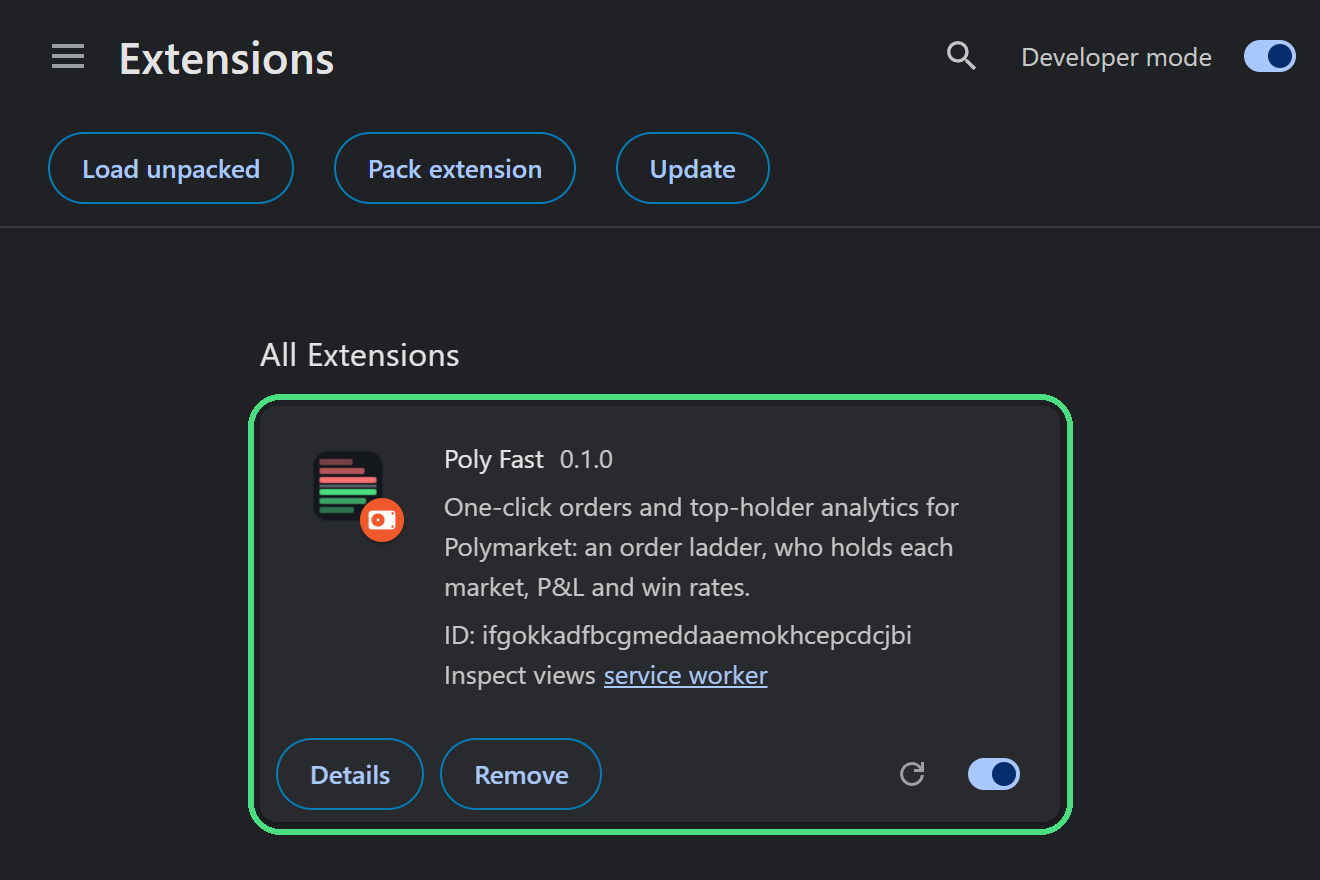
Updating to a new version
Chrome does not update an extension installed this way, so new versions come from this page. The version you have is on the Poly Fast card in chrome://extensions.
- Download the new zip and unzip it.
- Replace the files in your Poly Fast folder with the new ones.
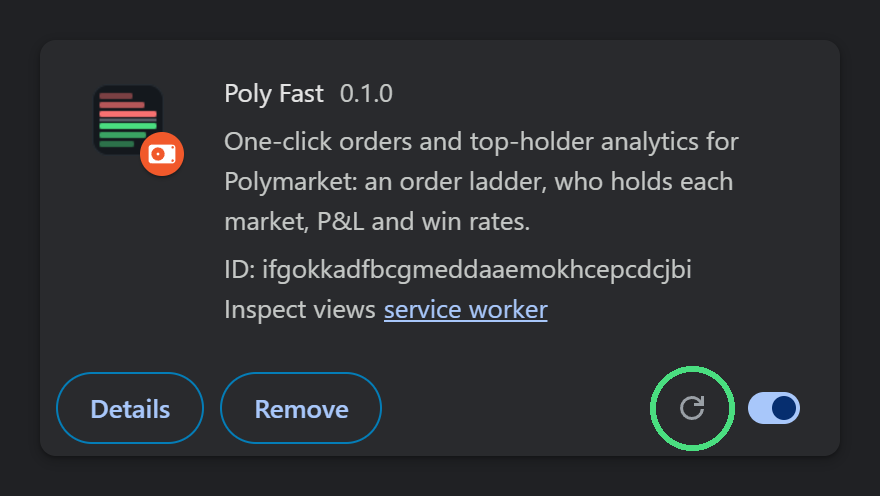
- Press the reload button on the Poly Fast card. Your settings stay; removing the extension instead would delete them.
If something goes wrong
“Manifest file is missing or unreadable”
The folder you picked is not the right one. Choose the folder that has manifest.json directly inside it: not the .zip, and not a folder around it.
The panel does not show up on Polymarket
Reload the Polymarket tab. A tab that was already open before you installed Poly Fast does not get it until it is reloaded.
Chrome warns about developer mode extensions
Chrome may remind you that an extension was loaded in developer mode. That is expected for anything installed from a folder. Close the message rather than pressing Disable; if Poly Fast does get switched off, turn its switch back on in chrome://extensions.
On a phone
Chrome on Android and iPhone does not run extensions, so Poly Fast works on desktop only.